

- Installs
- 1,000,000+
- Ratings
- 225,642
- Price
- Free
- Developer
- ANKO Solutions LLC
Screenshots


Overview
Alli360 is the Android app you install on your teen’s phone, while Kids360 for parents is the dashboard where you set rules and view usage. The two must be linked before either controls or usage data work, so Alli360 is not a standalone parental-control app you can try on your own device.
Alli360 is the child-side app, not the parent dashboard
The name can be confusing because the service is often called Kids360. The parent app holds the family setup; Alli360 goes on the device your teen uses. In the parent app, open Others > Family > Add a Child to display a linking code, then enter that code in Alli360 on the child’s phone. A parent can also send an install link instead. Usage data appears only after both apps are configured and the requested permissions are granted, so a fresh install with a code entered is not yet the whole setup.
What the limits actually do on your teen’s phone
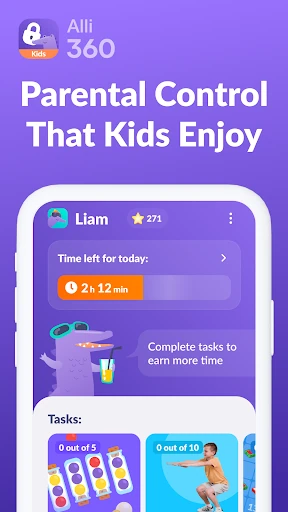
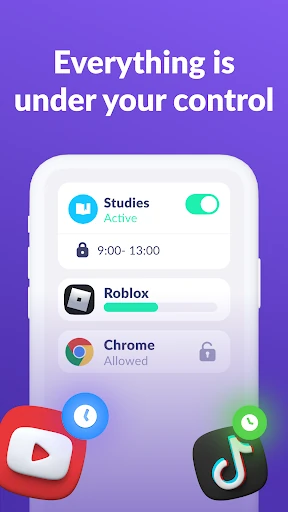
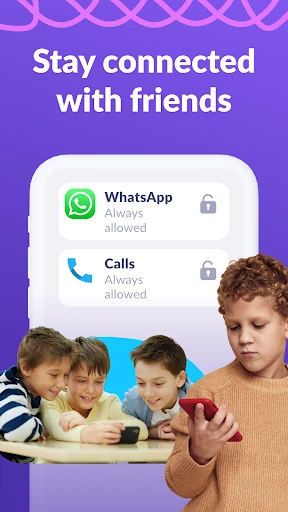
Once linked, the parent chooses which apps and games to limit or block. A daily time limit caps how long those selected apps can be used; a schedule makes entertainment apps unavailable during set periods, such as school hours or the evening. The contact-safe exception matters: calls, messages, taxi apps and other non-entertainment tools remain available, so the phone still works as a phone. The parent decides the app list, so the controls are only as broad or narrow as that list. This is not a blanket shutdown of the handset.
Free tracking versus paid time controls
Time-spent monitoring and the most-used-app view are free once a child device is connected. That lets you see the shape of your teen’s phone use before paying for anything. The time-management side—app limits, schedules and blocking—is available during the trial period or with a subscription, so the paid decision follows the free usage view.
Why it asks for accessibility, usage access, and device admin
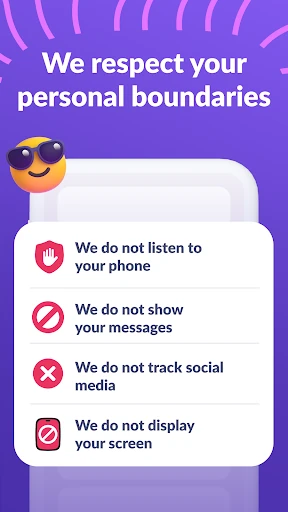
Each permission maps to a job. Display over other apps lets Alli360 show a block when a time limit or schedule applies. Accessibility services let it enforce screen-time limits. Usage access supplies the app-usage statistics. Autostart keeps the tracker running on the phone. Device admin protects the app from unauthorized deletion. Together these are broad access to the child’s phone, which is why the child has to give explicit consent. Device admin also means removal is a deliberate step rather than a quick uninstall. If your family is not comfortable with that level of access, the app is the wrong tool; the controls depend on it.
Removal, data deletion, and consent on a family phone
The store listing says Alli360 cannot be installed without the child’s knowledge and is used only with explicit consent. The companion parent-app listing says the child cannot delete it, so agree on when and how it will come off before you install it. Its Play data safety section adds another pre-install point: app activity and web browsing may be collected, app info and performance data may be shared with third parties, data is encrypted in transit, and data cannot be deleted. That is not a reason to skip the conversation; it is the conversation. A parental-control app that tracks usage and enforces limits is only a good fit if both parent and teen understand what stays on the phone and what happens when the arrangement ends.