

YouCut - Video Editor & Maker Review: Features, Pros & Cons
InShot Video Editor
- Installs
- 100,000,000+
- Ratings
- 8,337,380
- Price
- Free
- Developer
- InShot Video Editor
Screenshots




Overview
Yes — for everyday short social clips, YouCut is a practical free choice on Android: exports come out without a watermark, and trimming, merging, music and filters are all included. Whether it suits your specific clip comes down to the Pro-locked assets and the short cap on free AI enhancement.
A typical YouCut edit: trim, merge, add music and export
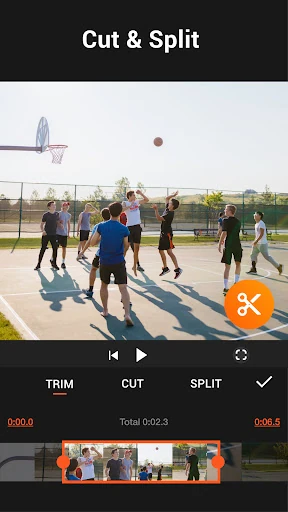
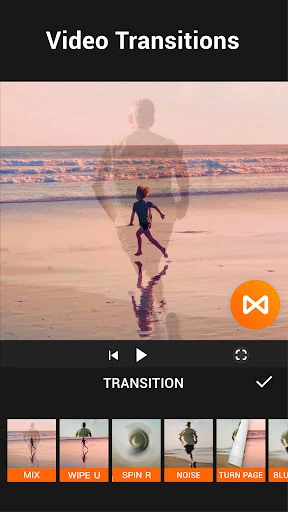
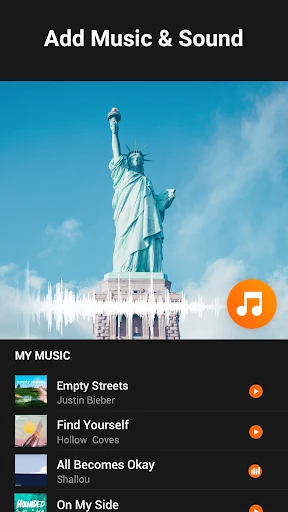
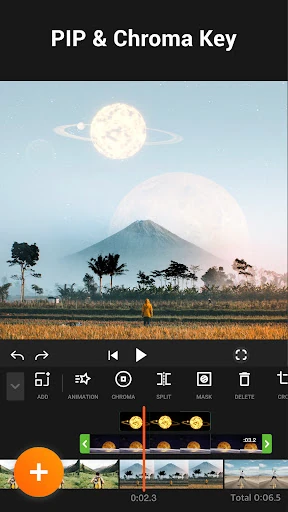
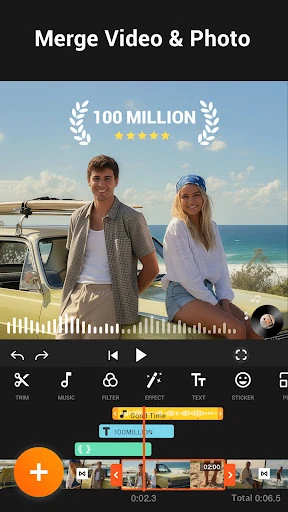
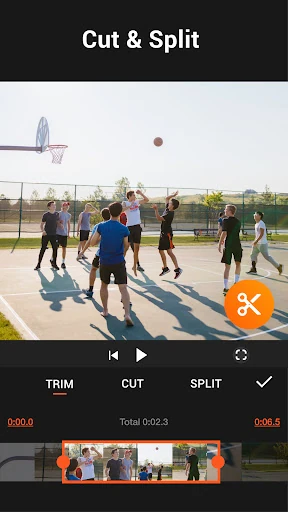
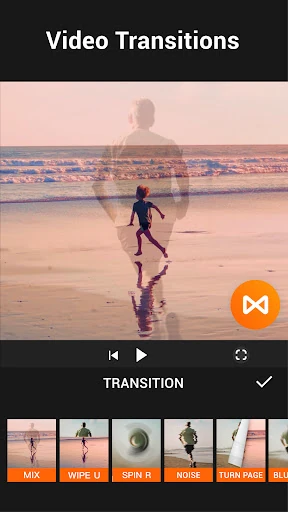
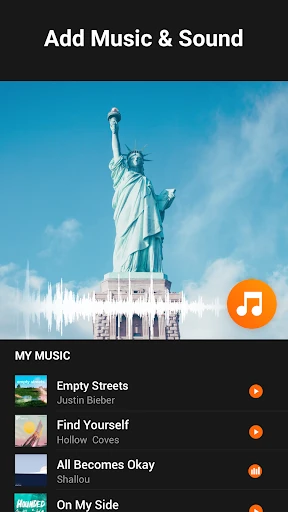
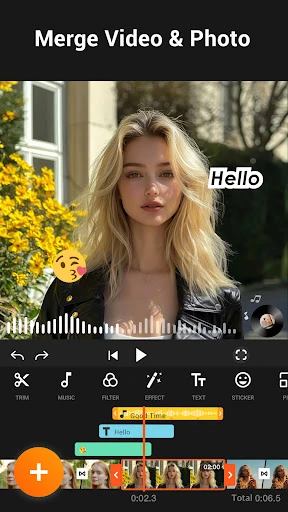
Open a clip, drag the timeline handles to trim it, and split wherever a cut is needed. Merging two or more clips means adding them to the same project and dropping a transition on the join; the app includes over 30, covering basic cuts, glitch and motion styles. Music can come from the built-in library or your own files, with the original audio volume adjusted separately so a voice doesn't disappear under a track. A filter or a quick brightness, contrast and saturation tweak finishes the look, then the crop tool sets the frame for the platform — 1:1, 16:9, 9:16 and so on. Picture-in-picture is there for overlays and reaction-style footage. Most everyday edits stay inside the one app, which is the point for a phone-first workflow.
Free exports without a watermark, but Pro assets and ads shape the free tier
The core free-tier fact matters more than any feature list: exported videos carry no watermark, and the editing screen doesn't run banner ads. A basic clip can be finished and posted without paying. What's restricted is the library itself — effects, fonts, stickers and music tracks marked Pro need the paid tier, and the upgrade also removes ads. Templates are largely free, though some ask you to watch an ad before use. Offline work is possible for trimming, merging and exporting; AI tools, Pro and music downloads, and anything ad-supported need a connection. If you edit on a plane or in a weak-signal spot, plan around the core cuts only.
AI captions, background removal and enhancement: useful for short clips, with limits
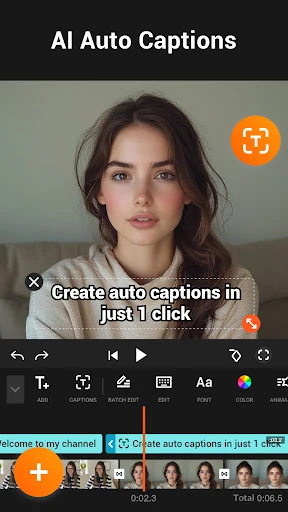
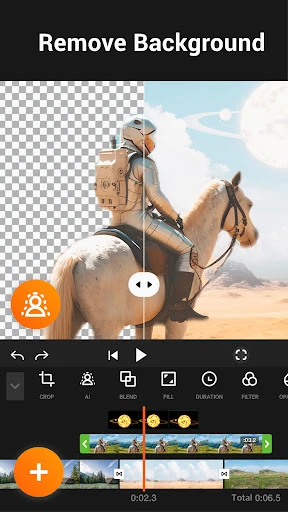
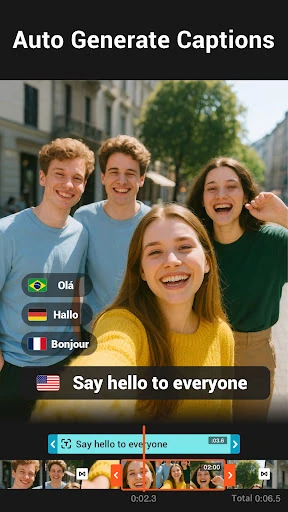
Auto captions turn speech into text on talking videos — handy for silent-scroll social posts. Background removal isolates a subject so you can drop in a solid color (white for social apps, black for a moodier look) or a blurred version of the footage, which is also where the chroma key tool sits for green-screen work. One-tap enhancement is the third piece, and here the free version's constraint is concrete: it handles clips up to 15 seconds. These tools lean toward short posts and product shots rather than long interviews. All three need a connection.
Export quality, file size and storage checks before you start
Exports run up to 4K, and a compression step cuts file size when the upload target has limits — expect some quality trade-off. Two Android constraints matter before a long edit: exports can't be saved to an SD card, and audio can't be exported as a separate file. On a phone with limited internal storage, compare free space against project length and resolution first; a 4K timeline on a nearly full device is where sessions go wrong. For a quick social post, set the aspect ratio, confirm the resolution you actually need, and export.