- Installs
- 100,000,000+
- Ratings
- 2,984,415
- Price
- Free
- Developer
- Adobe
Screenshots
Overview
Adobe Scan is a good free Android scanner for the everyday job of turning a paper page into a straight, clean, searchable PDF. The free tier is restricted by volume and file format rather than by capture quality, so light scanning costs nothing while heavy scanning or Word and Excel export pushes you toward the subscription.
What the free scanner actually does with a piece of paper
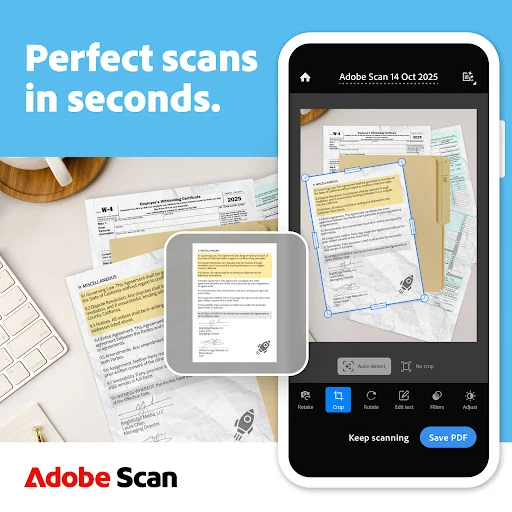
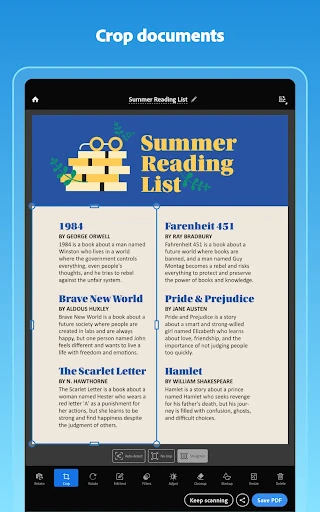
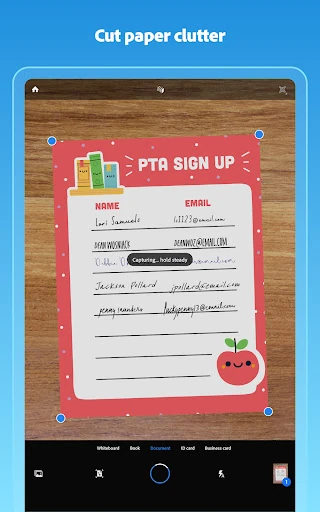
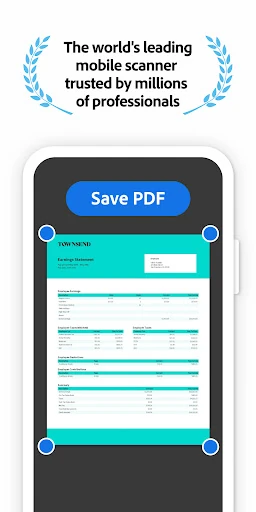
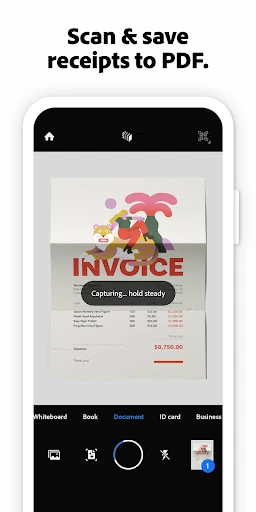
The capture flow starts with Auto Capture, which detects the page edges live and marks the corners in blue. When it can't find a clear boundary — a receipt on a dark table, a page with little contrast — you switch to manual capture and press the shutter yourself. From there, the Straighten tool is the one that earns its place: it corrects pages that came out curved or tilted, squaring them up before the PDF is made.
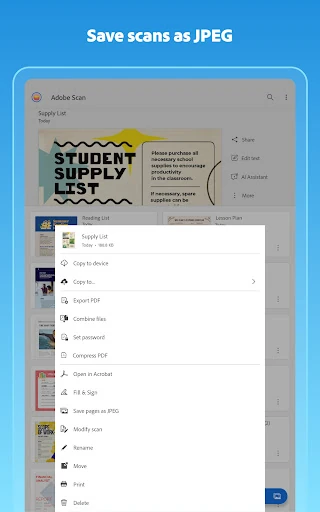
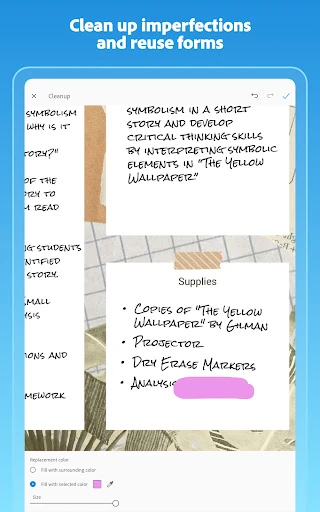
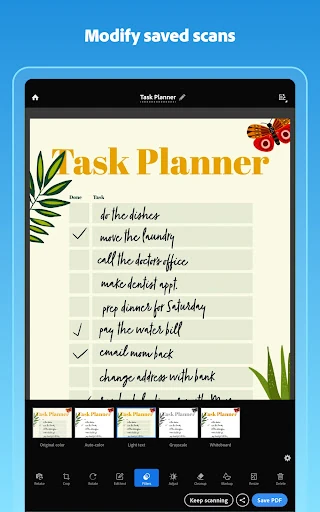
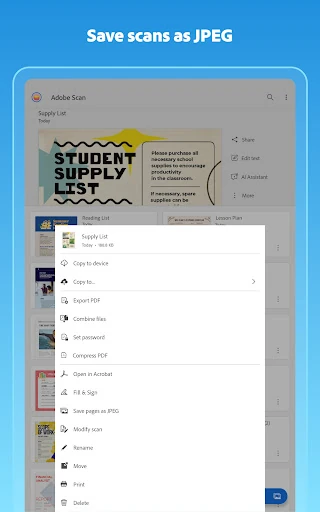
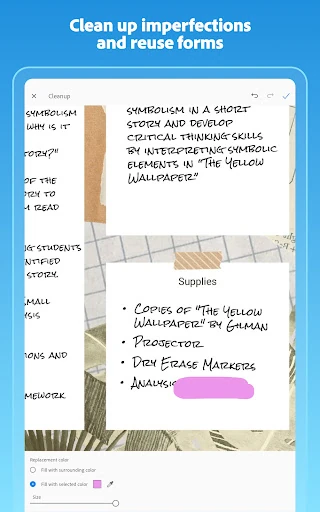
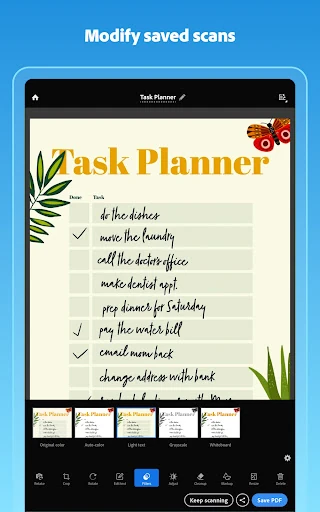
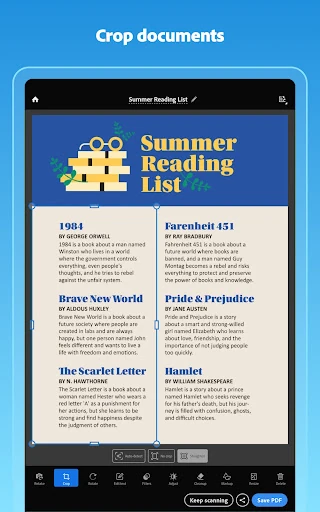
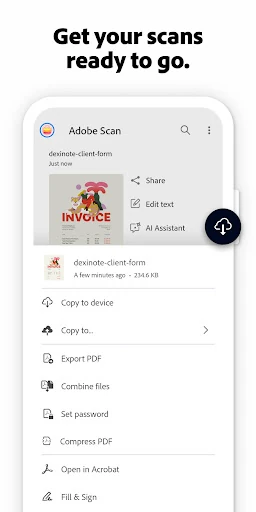
Before saving you can apply a page filter. Original Color, Auto Color, Light Text, Grayscale and Whiteboard each suit different material, and an "apply to all pages" toggle carries the choice across a multi-page scan. Cleanup removes stains, marks, creases and unwanted handwriting, while brightness and contrast sliders handle a dim photo. Multi-page editing is where the app separates itself from the camera: select several pages at once and rotate them, change filters, adjust exposure or delete them together, then save as PDF or JPEG. That editing pass, not the capture, is the work that makes a scan look presentable.
Free vs. paid: the OCR page cap, Office export and combining files
This is the split that decides whether Adobe Scan fits you. Free OCR covers 5 pages. A subscription raises that to 100 pages, adds export to Word, Excel, PowerPoint and RTF, lets you combine up to 20 files into one PDF, and unlocks High-speed Scan, which auto-captures each new page from a stack, magazine or book and can be paused and resumed.
Two conditions are worth knowing before you commit. Export and combine run through an online service, so they need a connection, and on Android anything processed by those subscription services is saved to Adobe's cloud storage regardless of where the original file lived. Scans also go to Adobe Document Cloud by default. If you keep documents strictly on the device or work offline often, that is part of the decision, not a footnote. Password-protected scans can't be combined, exported or compressed at all.
Matching the scan mode to the document in front of you
The modes change how the camera behaves, so pick by material rather than leaving it on the default. Book captures two facing pages and splits them, using a dashed divider you line up with the binding. ID card captures the front, prompts for the back and saves both sides into one PDF — handy for forms and verification. Whiteboard takes the whole camera view without cropping, which preserves diagrams and margin notes. Business card relies on boundary detection and pulls contact details you can save to your phone. For a contract or a stack of receipts, plain Document mode with auto capture is the right starting point.
Getting text you can search, copy and edit
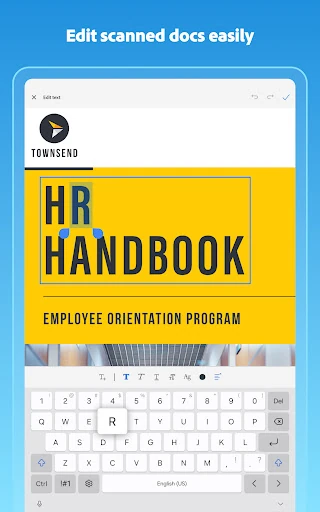
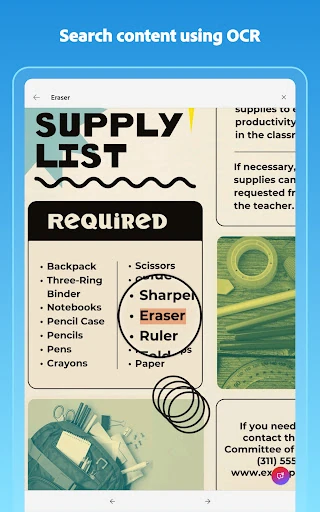
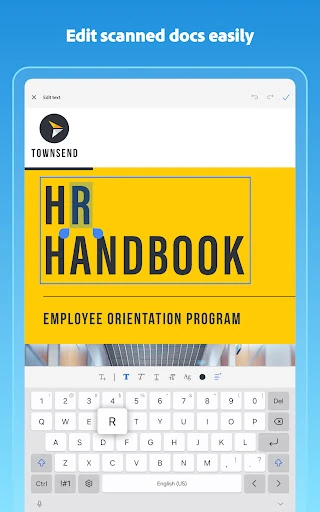
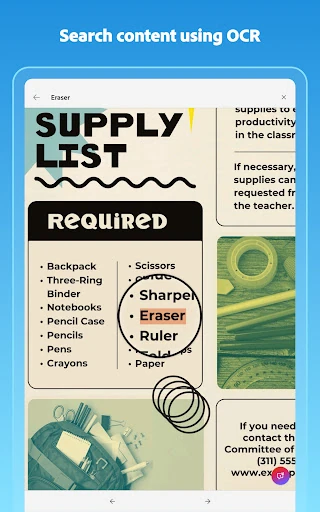
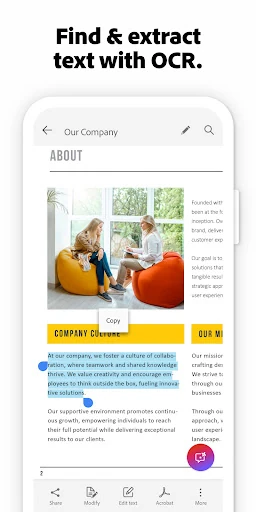
OCR is what makes a scan useful later. Set the recognition language under Preferences, where language packs can be downloaded — English, Japanese, French, Spanish, German, Chinese, Korean, Russian, Polish and others — so a non-English contract isn't wasted. Edit-in-text also picks up handwriting and lets you copy passages out of a contract or study notes rather than retyping them. Accuracy depends on the source, so a sharp, well-lit capture with the right filter matters more than any setting.
AI summaries and the Assistant: an optional extra
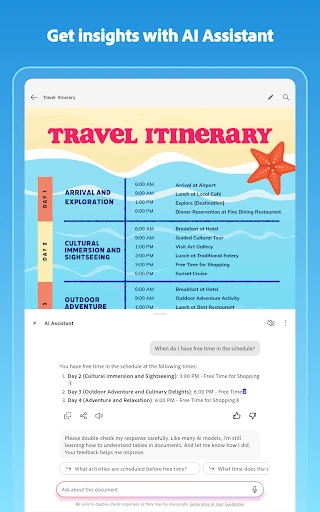
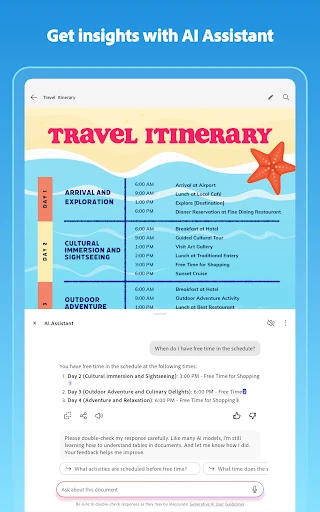
Generative summary pulls key points from a scan in one tap, and the AI Assistant will answer follow-up questions or draft an email or report from the document. Treat these as conveniences layered on top of the scan. They keep the work inside Adobe's cloud, and they aren't a reason to choose the app over a decent scan of the same page.