- Installs
- 10,000,000+
- Ratings
- 707,424
- Price
- Free
- Developer
- AR Drawing
Screenshots
Overview
AR Drawing: Sketch & Paint turns an Android phone into a live tracing overlay: you choose a template, point the camera at a sheet of paper, and trace the outline that appears over the real surface. That makes it a practical way to get proportions and placement right on a first attempt, provided you treat it as a guide rather than a complete drawing lesson.
How the camera overlay puts a template on your paper
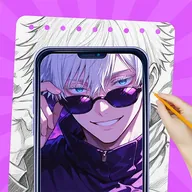
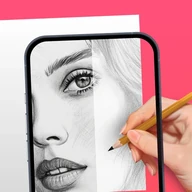
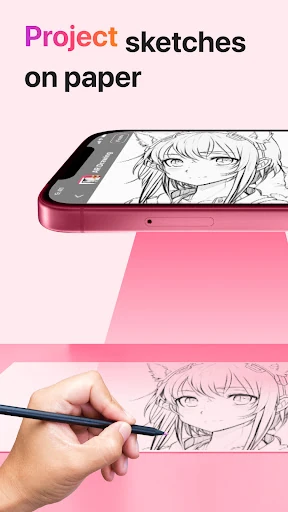
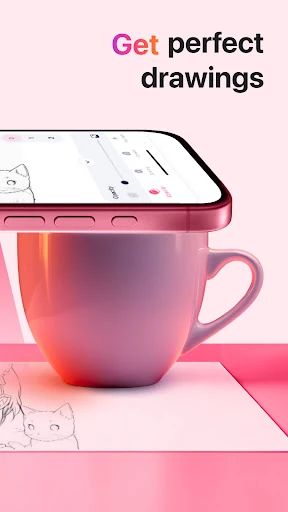
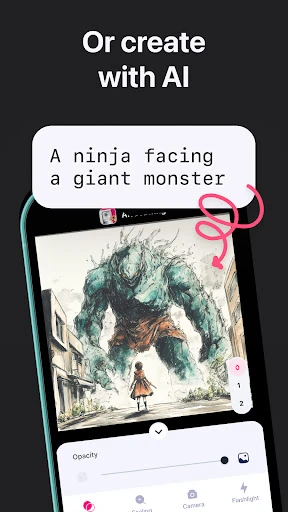
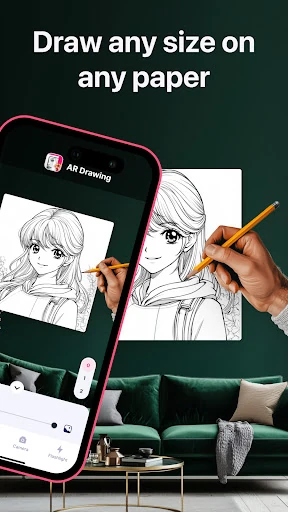
The core loop is simple. You pick an image from the template library, aim the camera at the paper or another flat surface, and the app lays the chosen outline over the camera view. The projection is live, not a printed guide, so the outline sits on the paper exactly as long as the phone stays put. You can follow it with a pencil or pen on real paper, or use the app's digital brushes on the screen. The paper workflow is the one that matters if you want a physical sketchbook result.
Because the overlay is tied to the camera's view, the phone and the paper have to remain aligned. Holding the phone in one hand while drawing with the other is possible for a quick outline, but small movements shift the projection and break the line. Propping the phone on a stand or a stable stack of books makes the session much easier.
Keeping the phone and paper aligned while you trace
A flat, well-lit surface is the basic setup. The app includes a built-in flashlight for dim rooms, which helps when the camera needs more light on the paper, but even lighting still makes the outline easier to follow. The bigger issue is phone stability. Every nudge changes the camera angle and moves the projected line relative to the paper. Set the phone down, check that the template is centered, and avoid touching it once you start tracing. A cheap phone stand or a couple of heavy books at the right height is more useful than trying to hold the phone steady by hand.
This is not a complicated workflow, but it does ask for a little preparation. If you want to trace on a wall or another surface, the same conditions apply: keep the camera fixed and the surface flat.
Template choices and the in-app sketch tools
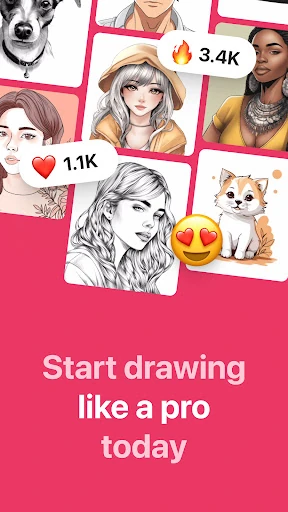
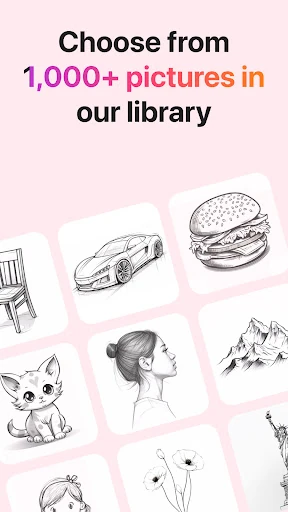
The template library covers anime and stylized characters, food, nature and plants, vehicles, and animals. For a beginner, that spread is useful because it gives you ready-made outlines to practice with instead of starting from a blank page. The app also includes sketching and painting tools for layering lines, adding color, and finishing a drawing digitally. If you are working on paper, you can ignore those tools and stay with pencil or pen; the templates still do their job as proportion guides.
The templates do not draw anything for you. They show where the lines should go, but you still have to make the marks, judge the curves, and decide how much detail to add. That distinction matters if you expect the app to teach freehand drawing from scratch.
Saving the drawing or recording the process
Finished work can be saved to the device gallery, and the app can record a time-lapse video of the drawing and painting process. That is handy for keeping a record of progress or for sharing a session with friends. It has little effect on the tracing itself, but it gives the app a second use as a capture tool.
What tracing can and cannot teach you
Tracing helps most with proportions, line placement, and getting a recognizable result. For a beginner, that can be a useful confidence boost: you see how a face, a car, or an animal is put together, and repeated sessions build some hand control. What tracing does not replace is freehand construction and observation. If you only copy outlines, you may get good at following a projected line without learning to judge a subject on your own. The app is a reasonable fit for casual drawing, practice with shapes, and making finished pictures from templates. It is not a substitute for a structured drawing course, and the phone-steady setup means it works best at a desk rather than on the move.