- Installs
- 50,000,000+
- Ratings
- 952,184
- Price
- Free
- Developer
- iKame Applications - Begamob Global
Screenshots
Overview
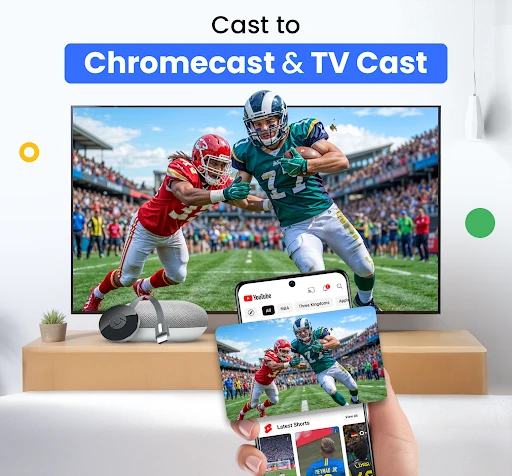
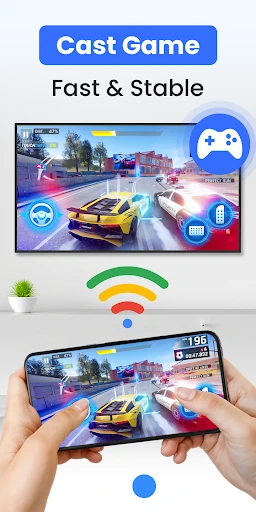
Yes — Cast for Chromecast & TV Cast handles both jobs you likely want it for: it mirrors an Android phone's display to a TV and sends individual videos, photos and music to a casting device, free and over Wi-Fi. The two modes behave quite differently, though, and whether the app feels useful or frustrating depends heavily on the receiver you own and whether both devices sit on the same network.
Mirroring your phone screen or casting one video
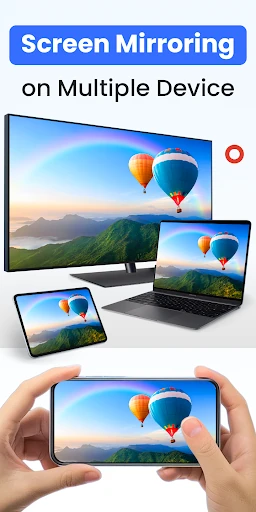
Mirroring clones the entire phone display in real time. If you want to show a mobile game, walk through a photo album, demonstrate an app or present something to a room, this is the mode to use. The TV shows what the phone shows, including anything that pops up on screen, and the phone stays occupied for the duration. Smoothness and audio handling depend on the receiver and network rather than being identical everywhere.
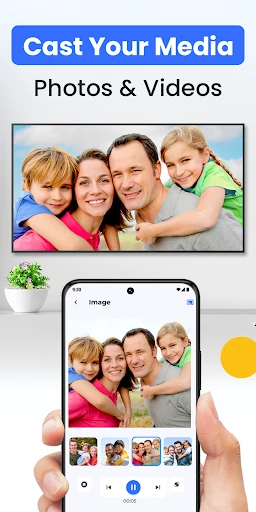
Casting a video is a different job. You choose a local file or stream, and the TV takes over playback while the phone is free for other things or can be locked. For a movie, a music playlist or a photo slideshow, casting is usually the better fit. Mirroring is for a live shared screen; casting is for handing off one piece of media. Knowing which mode you need before you start saves a lot of confusion.
What the app needs before it can find your TV
The non-negotiable condition is that the phone and TV or streaming stick are on the same Wi-Fi network. A phone using mobile data, or one joined to a guest network that isolates devices, will not see the TV. Once that condition is met, discovery is automatic: open the app, let it scan nearby devices, select yours and connect. There is no pairing code or cable step to plan for.
The second check is device support. The app claims compatibility with Chromecast, Chromecast Ultra and Cast-enabled devices; Roku streaming sticks and TVs; Amazon Fire TV and Fire Stick; Samsung, LG, Sony, Vizio, TCL and Hisense smart TVs; Xbox consoles; and DLNA or UPnP receivers. That is a broad list, but it is still worth matching your exact model before relying on it. If your TV does not appear during discovery, the app is unlikely to be the right tool for that setup.
Casting web video through the built-in browser
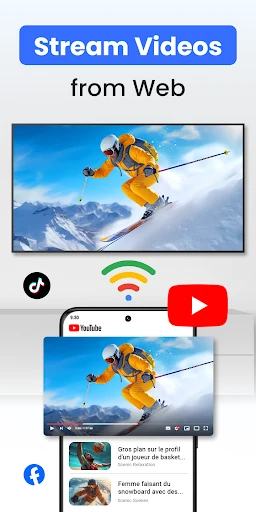
The built-in browser is the app's answer to online video that has no cast button of its own. You open the site inside the app and send the stream to the TV, rather than switching between a browser and a separate casting tool. This is handy when a page offers a playable video but no obvious way to push it to the big screen.
The caveat belongs to the feature itself: playback depends on the page serving a stream the app can hand off. If a site's player blocks that or uses a format the receiver cannot handle, the browser will not fix it. Treat this as something to try with the specific site you have in mind, not as a guarantee for every web player.
The phone as a backup remote
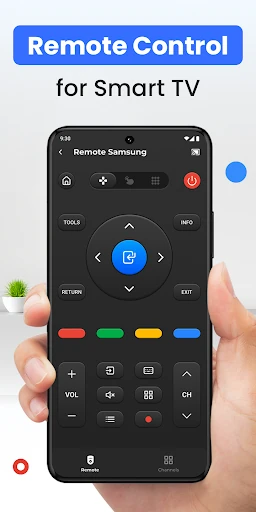
When the physical remote is lost or awkward to use during casting, the app can act as a substitute. Play, pause, seek, volume and menu navigation are available from the phone. It is a convenience layer on top of casting rather than a reason to install the app by itself, but it is useful once you are already sending something to the TV.
What the 3.9-star average tells you
A 3.9 average across close to a million ratings is a useful signal for a free utility. It suggests plenty of people get it working, while a meaningful number do not. The difference is likely to come down to the receiver, the network and what each person asks the app to do, rather than one universal flaw.
That makes it a tool to test on your own hardware early. Before a movie night or a meeting, try one mirroring session and one video cast, confirm that your TV is discovered and check the remote controls. If both modes work, the app covers the basics without cables. If discovery fails or playback is unreliable, you have learned that before the movie starts.